![ProjectTeam Logo - White with colored dots-2.png]](https://help.projectteam.com/hs-fs/hubfs/ProjectTeam%20Logo%20-%20White%20with%20colored%20dots-2.png?height=28&name=ProjectTeam%20Logo%20-%20White%20with%20colored%20dots-2.png)
Overview
Note: When viewing a form as another user, only the details pane will reflect that user's perspective — all other panes remain as your own view. No edits or changes can be made in this mode, as it is strictly a view-only feature.
Field-level security is a powerful ProjectTeam feature that gives administrators precise control over what users can view and edit within any form type. To verify that permissions are configured correctly, users can preview a form's details section as another user, making it easy to confirm they have exactly the access they need. For instructions on how to view a form's details as another user, see the section below.
How To View A Form As Another User
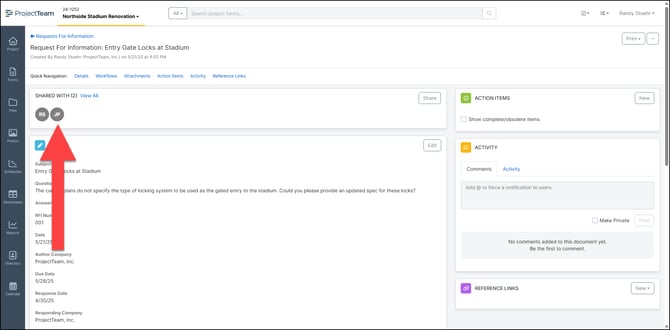
- Within a form that has already been shared to other users, click on a users icon in the "Shared With" pane of that form.
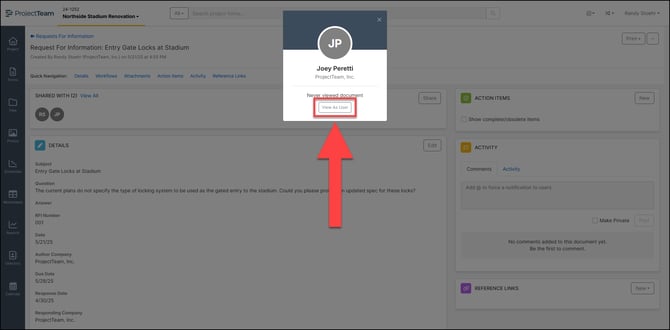
- A pop with appear with details about that user. Click the View As User button below the user's information.
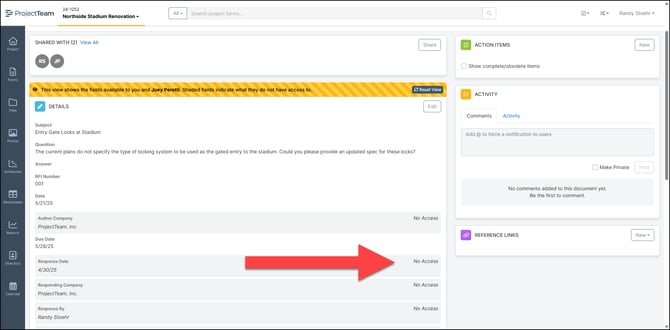
- The form's details pane will now display in view mode as the selected user, showing which fields they have access to and which fields they do not. The fields the user does not have access to, will be highlighted in grey.
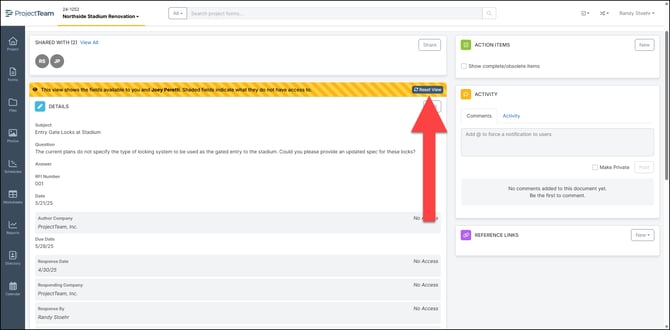
- To switch back to your view, click the Reset View button in the yellow banner.