![ProjectTeam Logo - White with colored dots-2.png]](https://help.projectteam.com/hs-fs/hubfs/ProjectTeam%20Logo%20-%20White%20with%20colored%20dots-2.png?height=28&name=ProjectTeam%20Logo%20-%20White%20with%20colored%20dots-2.png)
Overview
SSO must be integrated with ProjectTeam before it can be enabled for individual users. Once configured, Company Administrators can toggle SSO on or off for users at the My Company level. This article provides step-by-step instructions for enabling SSO for internal users.
How to turn on SSO for users
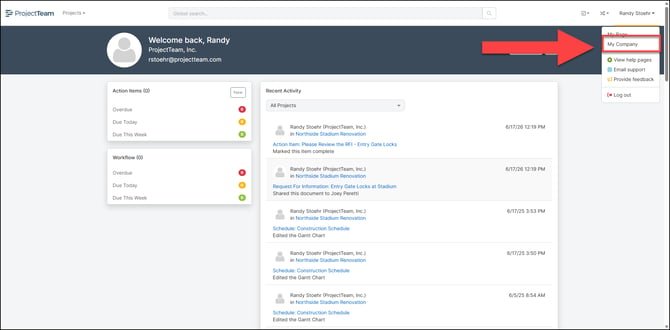
- Navigate to the My Company section of ProjectTeam by clicking your name and selecting it from the drop down list.
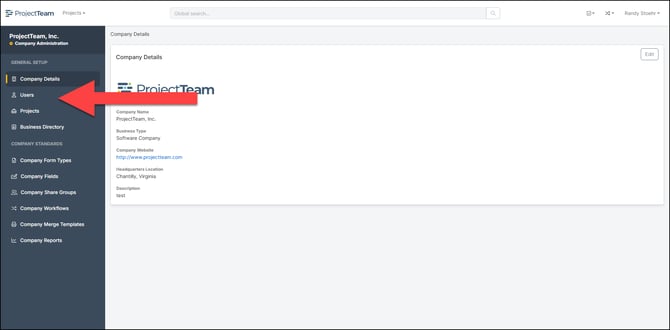
- From you Company homepage, select Users from the navigation bar.
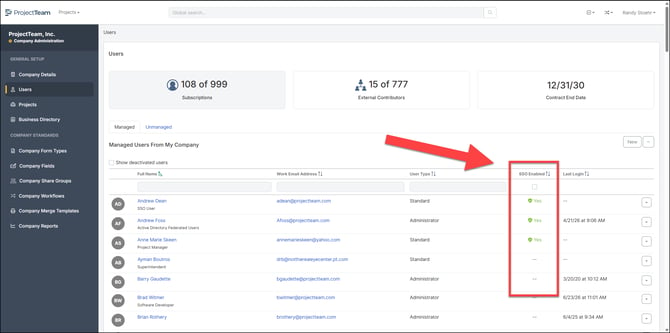
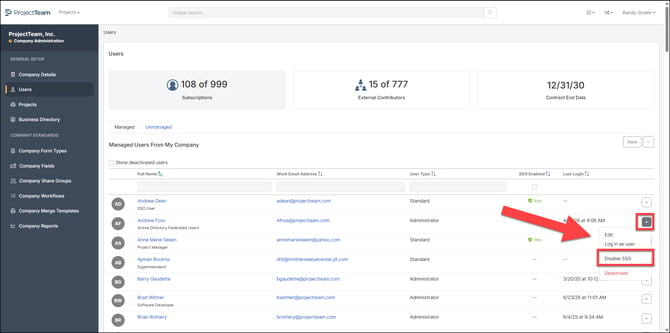
- In the "Users" section, you will see a column titled "SSO Enabled". If a user has SSO enabled, this will be indicated with a green check mark and "Yes".
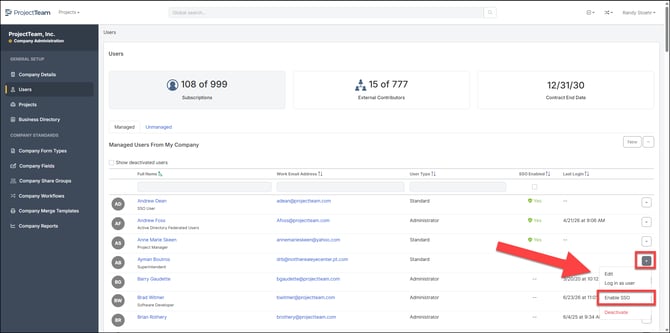
- To enable SSO for an individual user, click the drop down next to the users name and select Enable SSO.
- To disable SSO for an individual user, click the drop down next to the users name and select Disable SSO.
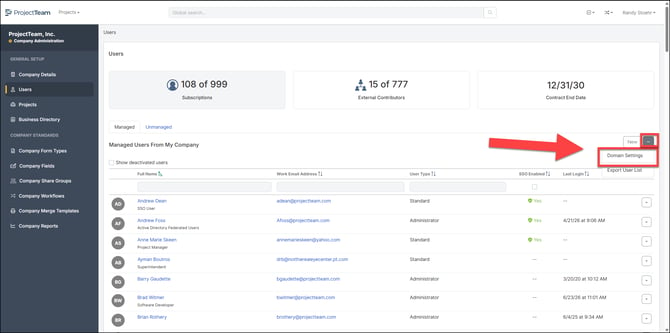
- To ensure your Company has SSO enabled, click the three dot button located in the upper right-hand corner of the user list. Select Domain Settings.
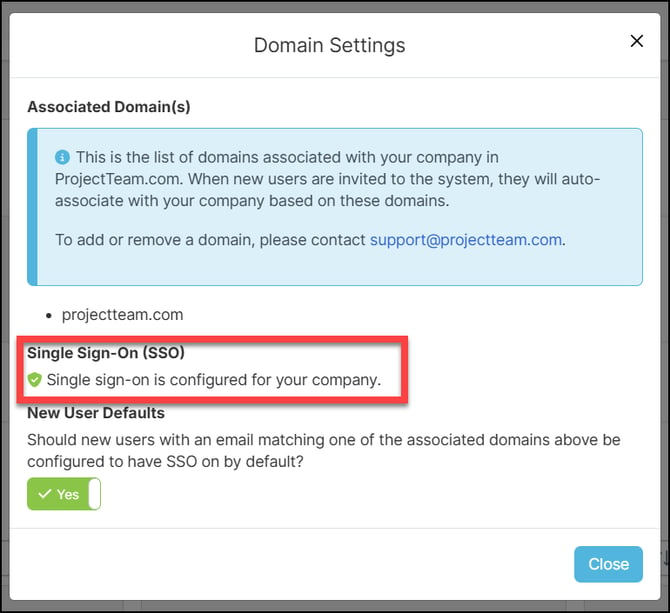
- A pop-up will appear confirming that SSO has been configured for your Company in ProjectTeam, along with the email domains associated with your Company's account.
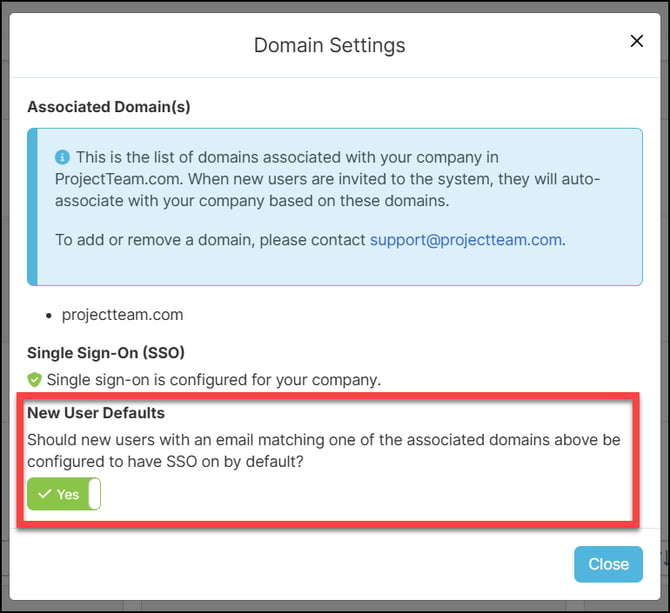
- To automatically enable SSO for new users with a matching email domain, toggle on New User Defaults in the pop-up. When enabled, ProjectTeam will apply SSO to any new user account upon creation.
Note: SSO must be integrated with ProjectTeam before it can be enabled for any users. For setup instructions, visit our SSO help pages.