![ProjectTeam Logo - White with colored dots-2.png]](https://help.projectteam.com/hs-fs/hubfs/ProjectTeam%20Logo%20-%20White%20with%20colored%20dots-2.png?height=28&name=ProjectTeam%20Logo%20-%20White%20with%20colored%20dots-2.png)
-
Securely Access, Configure, Operate, and Decommission Top Level Administrative Accounts
-
Security-Related Settings Restricted to Top-Level Administrative Accounts
Overview
This guidance describes how authorized administrators securely access, configure, operate, and decommission top-level administrative accounts that control enterprise-wide access within the ProjectTeam.com environments.
This page applies to:
- Customer-designated "company" administrators with limited, non-platform administrative permissions
-
Any account with elevated privileges impacting the entire service offering
At no time are customers provided with platform-level or infrastructure-level administrative access.
Note: ProjectTeam operates both a commercial cloud environment and a separate FedRAMP-authorized environment. Unless otherwise stated, the administrative practices described below apply to both ProjectTeam environments, with additional FedRAMP-specific controls enforced within the FedRAMP-authorized boundary.
Securely Access, Configure, Operate, and Decommission Top Level Administrative Accounts
A top-level administrative account in ProjectTeam.com is considered a Company Administrator. Company Administrators have elevated privileges that allow them to manage users and company-level configuration settings for their own organization only.
Each customer can designate a subset of their users as Company Administrators. These users do not have access to other customer environments or to ProjectTeam system-level administration.
Company Administrator access is granted only to authenticated users within the customer’s organization. Customers are responsible for ensuring that Company Administrator accounts are assigned only to trusted individuals and managed in accordance with internal security policies.
Recommended best practices include:
-
Using strong, unique passwords
-
Enabling multi-factor authentication where available
-
Limiting the number of Company Administrator accounts to the minimum necessary
Viewing Company Administrators
Note: Only Company Administrators can see what other users from their company have Administrative access.
To view users with Company Administrator access:
- Navigate to the My Company area (Click your name and choose My Company)
- Select Users on the left side navigation menu
- Review the list of users and identify those with "Administrator" in the User Type column.
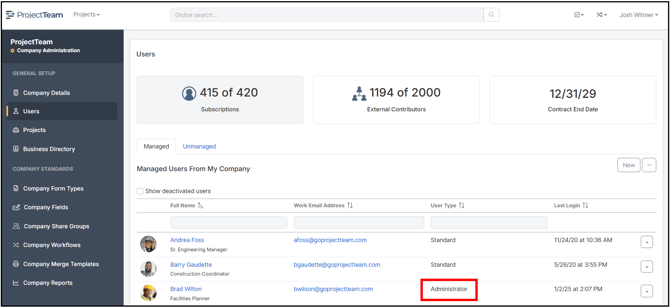
The Users list clearly identifies which users have Company Administrator priviledges.
Configuring Company Administrator Access
To grant, modify, or remove Company Administrator access:
- Navigate to the My Company area (Click your name and choose My Company)
- Select Users on the left side navigation menu
- Click the appropriate user's name
- Click Edit
- Update the User Type field:
- Administrator - Grants Company Administrator access
- Standard - Removes Company Administrator access
- Click Save to save changes. Updates take effect immediately.
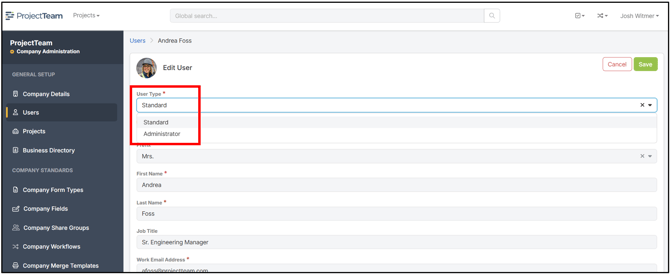
Operating Company Administrator Accounts
Company Administrators can perform administrative actions only within their own company account, including managing users and permissions. Administrative access is scoped to the customer’s organization and does not impact the ProjectTeam cloud service or other customer environments.
Customers should regularly review Company Administrator assignments to ensure continued alignment with role and responsibility requirements.
Decommissioning Company Administrator Accounts
When a user no longer requires administrative privileges:
- Follow the instructions in section "Configuring Company Administrator Access" above to change the user's User Type from Administrator to Standard, or
- Deactivate the user account by choosing the Deactivate button to remove their ability to log in completely.
Timely removal of administrative access supports least-privilege access and reduces security risk.
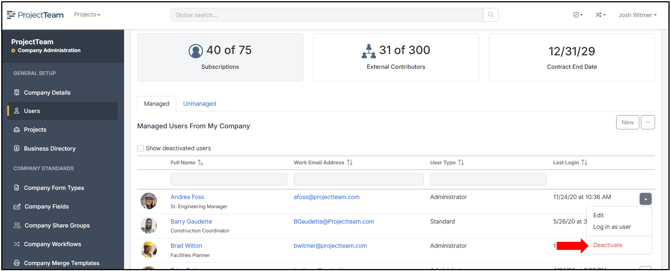
Security-Related Settings Restricted to Top-Level Administrative Accounts
Certain security-related settings within ProjectTeam.com can be configured only by Company Administrators due to their impact on access control, data visibility, and system integrity within a customer’s organization. Customers should carefully manage these settings and limit Company Administrator access to trusted users only. They include:
| Administrative Capability | Description | Security Implications |
| User Management | Company Administrators can create, modify, deactivate, or remove user accounts within their organization. This includes assigning user types and managing account status. | Improper user management may result in unauthorized access to sensitive project data. Failure to remove or deactivate users who no longer require access increases the risk of data exposure. Regular review of active users helps enforce least-privilege access. |
| Company-Level Permission Roles (Share Groups) | Company Administrators can create and manage permission roles, referred to as Share Groups, which control what data and features users can access across projects and records. | Misconfigured Share Groups may unintentionally grant users access to restricted data or functions. Administrators should ensure Share Groups are carefully designed and tested to align with organizational access policies and to prevent over-permissioning. |
| Company-Level Forms Configuration | Company Administrators can create and configure custom forms used to capture and manage project data, including defining fields, required inputs, and data visibility. | Forms may collect sensitive or regulated information. Improper configuration can result in unnecessary data collection or excessive visibility of sensitive fields. Administrators should ensure forms are designed to collect only required information and limit access appropriately. |
| Company-Level Workflow Configuration | Company Administrators can configure visual workflows that define process steps, approvals, and routing for records and forms within the system. | Workflow configuration controls how and when data moves between users. Incorrect workflows may bypass required approvals, expose data to unintended users, or disrupt established business controls. Administrators should validate workflows to ensure they enforce proper review, approval, and segregation of duties. |
Due to the security impact of these settings, ProjectTeam.com restricts their configuration to Company Administrator accounts and recommends regular review to ensure continued alignment with organizational security policies.
Recommended Security Defaults
ProjectTeam recommends that customers periodically review top-level administrative and privileged account settings to ensure alignment with secure configuration best practices.
While ProjectTeam does not enforce customer-specific administrative configurations, Company Administrators can manually compare current settings against recommended secure defaults using built-in administrative views, including:
-
The Users list to review Company Administrator assignments
-
Share Group configuration screens to review permission scopes
-
Forms configuration to review data collection and visibility
-
Visual Workflows to review approval paths and routing logic
This review process allows organizations to identify over-permissioning, outdated access, or configuration drift and take corrective action as needed.
| Area | Recommended Secure Default |
| Company Administrators | Limit to a small number of trusted users |
| User Access | Assign permissions via Share Groups using least-privilege principles |
| Forms | Collect only required data and limit visibility of sensitive fields |
| Workflows | Require approvals for sensitive or impactful actions |
Responsibility & Compliance Alignment
Customers are responsible for:
-
Managing tenant-level administrative users
-
Ensuring appropriate role assignment within their organization
-
Following internal security policies when designating administrators
This guidance supports compliance with:
-
FedRAMP Moderate baseline requirements
-
NIST SP 800-53 controls including AC-2, AC-6, IA-2, AU-2, AU-12, and CM-5