![ProjectTeam Logo - White with colored dots-2.png]](https://help.projectteam.com/hs-fs/hubfs/ProjectTeam%20Logo%20-%20White%20with%20colored%20dots-2.png?height=28&name=ProjectTeam%20Logo%20-%20White%20with%20colored%20dots-2.png)
Note: The ProjectTeam MCP is not turned on by default. If you’d like to opt in to connecting ProjectTeam.com to Claude or ChatGPT, please contact ProjectTeam Support at support@projectteam.com to request MCP access.
- What is the ProjectTeam MCP?
- What can I do with it?
- Who can use it?
- Before you connect
- What's supported in this release
- Connecting to the ProjectTeam MCP Server
- Usage guidelines
- Troubleshooting
- Security & privacy
What is the ProjectTeam MCP?
The ProjectTeam MCP lets you access and update your ProjectTeam.com data directly from the AI tools you already use, like Claude or ChatGPT. Ask a question or describe what you need in plain language, and get a real answer, or make a real update, from your ProjectTeam.com account, right where you're working.
MCP (Model Context Protocol) is an open standard that lets AI tools connect securely to external platforms. The ProjectTeam MCP is built on this standard, so ProjectTeam.com can show up in your workflow instead of asking you to leave it.
This isn't read-only. You can create and update records, not just look them up.
What can I do with it?
With the ProjectTeam MCP connected, you can create, update, and retrieve records using natural language. A few examples:
- Field Reports on the go. "Create a field report for today's site visit. Clear skies, 75°F, crew poured the footings for the north wing, and the drywall subcontractor didn't show up." This works well by voice from your phone, so you can log a field report even if you're not at a desk.
- Requests For Information. "Log an RFI about the mismatched dimensions between Drawing A-101 and the structural spec" or "What's the status of RFI #45?"
- Punch List Items. "Add a punch list item for the cracked tile in the lobby" or "Show me all open punch list items on the Riverside project."
- Directives. "Create a directive telling the framing subcontractor to stop work on the east wing until the inspection clears."
- Contract Exhibits. "Pull up Contract Exhibit B for the Downtown Medical project."
- Custom forms. Anything your company has built as a custom form type is fair game too, using the same field types supported below.
Who can use it?
The ProjectTeam MCP is available to Subscribers only, meaning users with a paid ProjectTeam.com account. Both standard Users and Company Administrators can use it; there's no admin-only requirement. Contributors (free accounts) can't connect to the MCP.
Beyond that, your existing ProjectTeam.com permissions still apply. If you don't have access to a project, form type, or field inside ProjectTeam.com today, connecting the MCP doesn't change that. The same rules that govern what you can see and do when you're logged into ProjectTeam.com directly also govern what your AI tool can see and do on your behalf.
Before you connect
- A ProjectTeam.com Subscriber account (Standard User or Company Administrator; Contributor/free accounts aren't supported)
- Access to Claude (Desktop or web) or ChatGPT (Desktop or web)
- Your regular ProjectTeam.com login credentials. You'll sign in with those to complete the connection.
What's supported in this release
This is an early release, so coverage is intentionally limited to a specific set of forms and fields. Here's what's in and out right now.
Supported form types:
- Request For Information
- Punch List Item
- Field Report
- Directive
- Contract Exhibit
- Any custom form type your company has created
Not yet supported: File, Folder, Action Item, Email, Merge Document, Submittal Item, Submittal Package, Drawing, Drawing Package, Specification, Specification Package, Contract, Potential Change Order, Change Order, Payment Application, Request For Proposal, Cost Proposal, Meeting, Budget Item, Budget Amendment, Schedule, and Worksheet. These are planned for future releases.
Supported field types: Account Code, Checkbox, Cost Period, Date, Email, Number, Number (Currency), Phone Number, Picklist, Project Directory (Business), Project Directory (Contact), Text (Multiline), Text (Single Line), and URL.
Not yet supported: Collection, Collection (Reference), Formula, Number (Auto Number), Photo, Picklist (Cascading), and Text (Multiline Rich Format).
Actions:
- Create, update, and retrieve (view/search) are all supported.
- Delete is not supported. You can't remove a record through the MCP. You'll need to do that directly in ProjectTeam.com.
- For form types that support revisions, this release covers creating, updating, and retrieving the first revision only. Support for later revisions is planned for a future release.
Note: Because this release can create and update real records in ProjectTeam.com, always review what the AI tool is about to do before approving it. See Usage guidelines below.
Connecting to the ProjectTeam MCP Server
Choose your AI client below for setup instructions.
Claude Desktop/Web
These steps are the same whether you're using the Claude Desktop app or claude.ai in a browser.
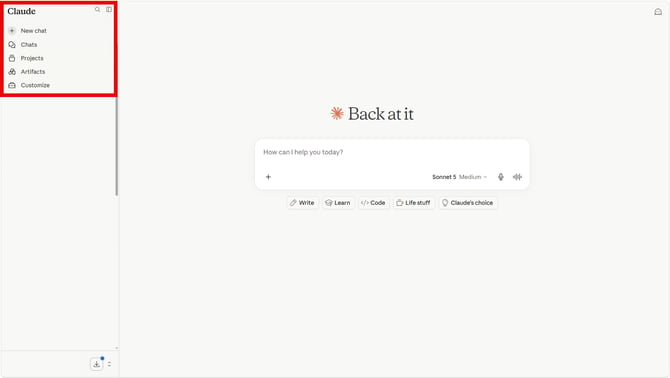
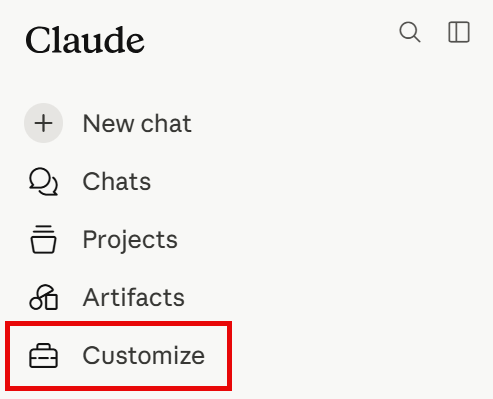
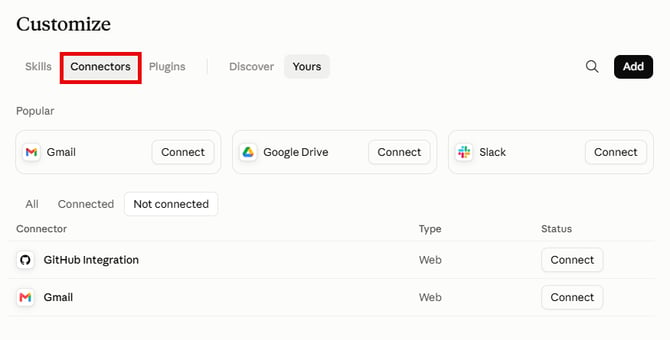
Step 1: In the left sidebar, click Customize → Connectors.
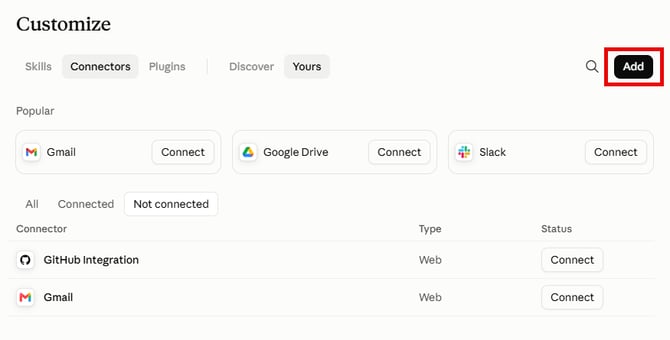
Step 2: In the top-right, click Add.
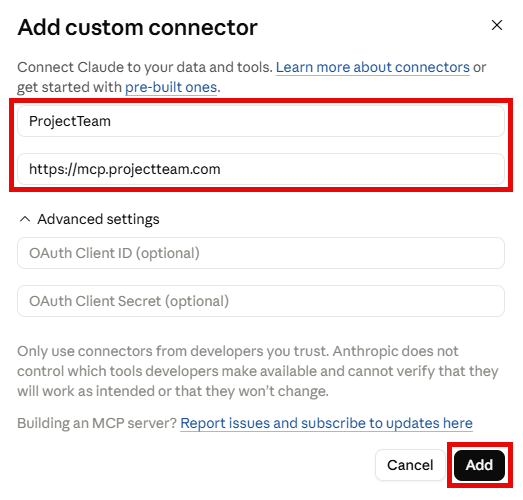
Step 3: Enter ProjectTeam as the name and https://mcp.projectteam.com as the Remote MCP server URL, then click Add.
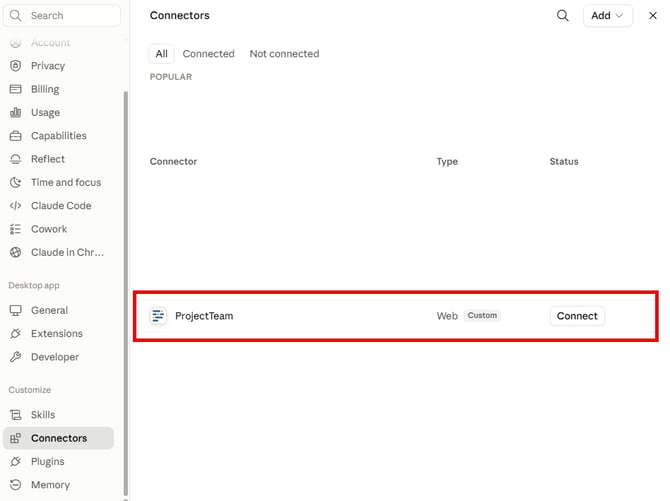
Step 4: ProjectTeam will appear in your connectors list. Click it, then click Connect, and sign in with your ProjectTeam.com credentials to complete the connection.
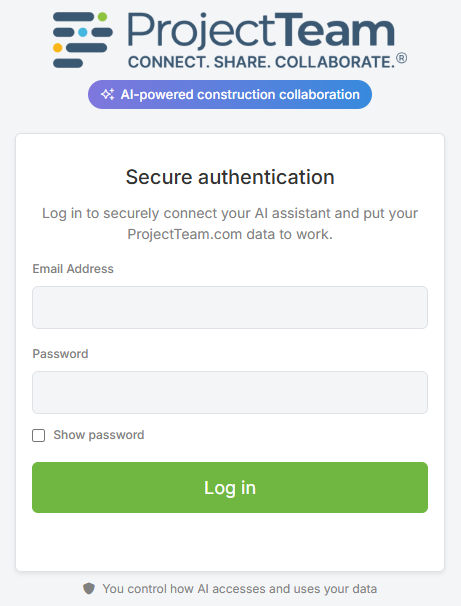
ProjectTeam tools are now available in your Claude conversations.
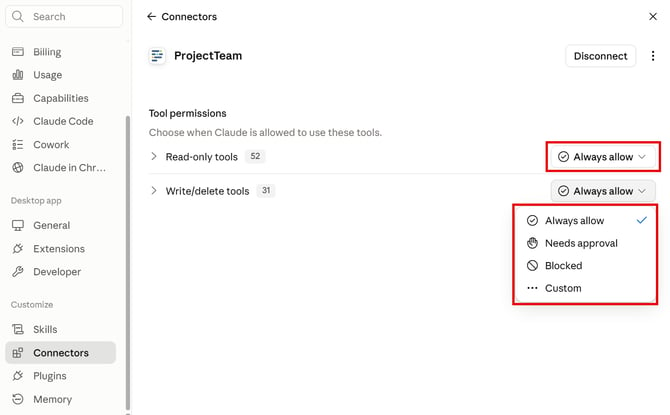
Step 5: Click the ProjectTeam connector to open its settings. Under Tool permissions, you'll see two categories: Read-only tools and Write/delete tools. For each, choose whether Claude should Always allow it to run automatically or should ask first with Needs approval. Since this release can create and update real ProjectTeam.com records, we recommend setting Write/delete tools to Needs approval, at least until you're comfortable with how it behaves.
Note: If your organization uses a Team or Enterprise Claude plan, an Owner may need to add this connector at the organization level first (Organization Settings → Connectors) before individual members can connect. On an individual plan, you can add it directly as shown above.
Claude Mobile (iOS/Android)
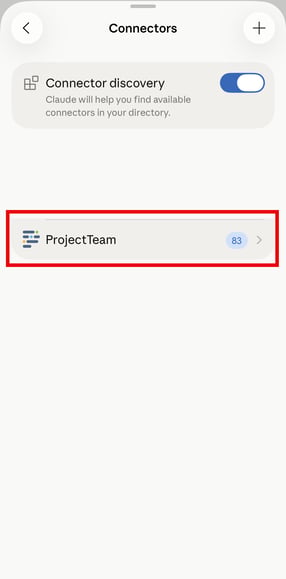
Note: You can't add the ProjectTeam connector directly from the Claude mobile app. You must complete the setup in Claude Desktop or claude.ai first (see Claude Desktop/Web above). Once that's done, it's tied to your account and shows up automatically the next time you open the Claude app on your phone.
Don't have the Claude app yet? See Anthropic's guides for installing Claude on iOS or installing Claude on Android.
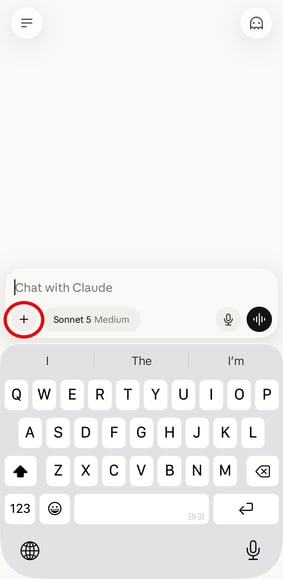
Step 1: Open the Claude app and start or open a conversation.
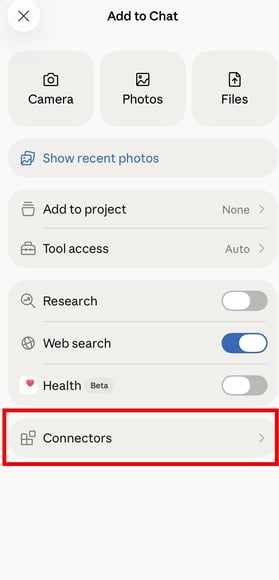
Step 2: Tap the + button near the message box (or type "/") to open the menu.
Step 3: Tap Connectors, then make sure ProjectTeam is turned on for that conversation.
ChatGPT Desktop/Web
These steps are the same whether you're using the ChatGPT desktop app or chatgpt.com in a browser.
Prerequisite: Developer Mode requires a ChatGPT Plus, Pro, Business, Enterprise, or Edu plan. It isn't available on the free plan.
Step 1: Enable Developer Mode. Go to Settings → Apps → Advanced settings and toggle Developer Mode on.
Step 2: Still in Settings → Apps → Advanced settings, click Create app.
Step 3: Enter ProjectTeam as the name, add a description if you'd like, and under Connection, make sure it's toggled to Server URL.
Step 4: Enter https://app.mcp.projectteam.com in the URL field, set authentication to OAuth, and save.
Step 5: Complete the OAuth login flow when prompted, signing in with your ProjectTeam.com credentials.
Step 6: In a new chat, click +, then More, and make sure ProjectTeam is selected.
ChatGPT Mobile (iOS/Android)
Note: You can't create the ProjectTeam app directly from the ChatGPT mobile app. You must complete the Developer Mode setup in ChatGPT Desktop or on chatgpt.com first (see ChatGPT Desktop/Web above). Once that's done, it becomes available in the ChatGPT mobile app automatically.
Don't have the ChatGPT app yet? It's available on the App Store and Google Play; search "ChatGPT" from OpenAI.
Step 1: Open the ChatGPT app and start or open a conversation.
Step 2: Tap the + button near the message box.
Step 3: Tap More, and make sure ProjectTeam is selected.
Usage guidelines
- Review before approving, especially for writes. Since this release can create and update real ProjectTeam.com records, don't set write actions to "Always Allow" until you're comfortable with how the tool behaves. Use "Ask Every Time" so you can confirm each change before it happens.
- Use trusted AI clients only. Connect through established platforms like Claude or ChatGPT.
- Verify AI outputs before acting on them. Treat AI-generated summaries and drafts as a starting point. Always confirm accuracy, especially field values, before relying on them for decisions.
- Refresh your connection occasionally. ProjectTeam periodically updates the MCP server to support new form types and fields. Disconnecting and reconnecting once in a while makes sure you're on the latest version.
- Opt out of model training in your AI tool's settings if you'd like to keep your conversations private from being used to improve the underlying models.
Troubleshooting
Connection isn't completing
- Verify you're signing in with the ProjectTeam.com credentials associated with your account.
- Try restarting the connection process if it fails partway through.
- Clear your browser cookies and try again if the issue persists.
Connector isn't active after setup
- Click Connect on the connector in your list and confirm it shows as connected before starting a chat.
- For ChatGPT, make sure ProjectTeam is enabled under More in the composer.
"I don't have permission" errors
- Confirm you're using a ProjectTeam.com Subscriber account. Contributors can't connect to the MCP.
- If you are a Subscriber, this reflects your normal ProjectTeam.com permissions, the same as if you tried the same action while logged into ProjectTeam.com directly. Contact your Company Administrator if you believe you should have access.
Other authentication errors
- Ensure your ProjectTeam.com account is active.
- If issues persist, contact us at support@projectteam.com.
Security & privacy
The ProjectTeam MCP connects your AI tool to your ProjectTeam.com account using your normal ProjectTeam.com login. Data transfers are encrypted and limited to the connection between ProjectTeam.com and your AI tool. The connection stays active until you disconnect it.