![ProjectTeam Logo - White with colored dots-2.png]](https://help.projectteam.com/hs-fs/hubfs/ProjectTeam%20Logo%20-%20White%20with%20colored%20dots-2.png?height=28&name=ProjectTeam%20Logo%20-%20White%20with%20colored%20dots-2.png)
- Overview
- Edit a Company Workflow
- Add Company Workflows to Projects
- Remove Projects from Company Workflows
- Delete Company Workflows
Overview
Note: Only Company Administrators can manage Company Workflows.
Company Workflows are similar to workflows at the project level. The difference is that Company workflows are created and managed only at a Company level and then can be used across multiple projects. This article covers how to edit a Company Workflow, apply it to projects, and delete it.
To access the Company Workflows area at a company level, Company Administrators can click the Company Workflows tab in the My Company area.
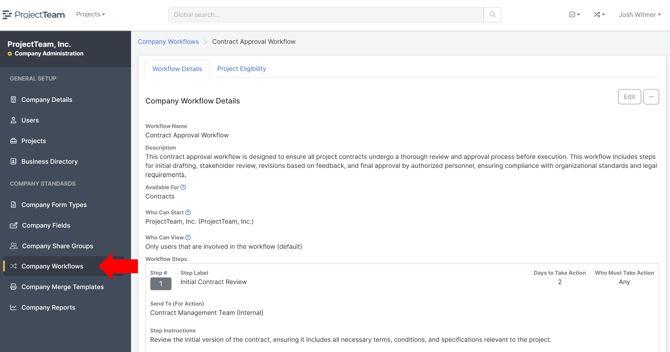
Edit a Company Workflow
Once a workflow has been created, Company Administrators still have the ability to edit the workflow and manipulate the steps.
Note: If a workflow has been started prior to making changes, then the updates will not appear in that workflow. They will only appear in workflows started after the changes are made.
- Click the Company Workflow you want to edit.
- Click Edit in the top right-hand corner of the page.
- Once you enter edit mode, you can change any of the workflow information, including adding and removing steps.
- Click Save at the top right-hand corner of the page.
Note: The only field that is not editable is the Form Type field. Once a form type has been selected, there is no way to change the form type.
Note: Company Workflows can be added to projects in two ways: by Company Administrators "pushing" the workflows down to projects, or by Project Administrators "pulling" the workflows into their project. The following steps explain how to push a Company Workflow down to a project.
- Click the Company Workflow you want to add to a project.
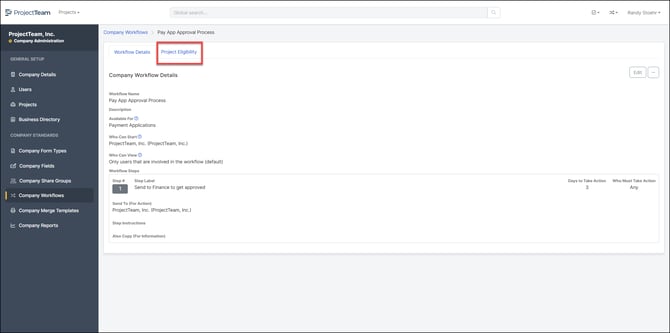
- At the top of the page, click the Project Eligibility tab.
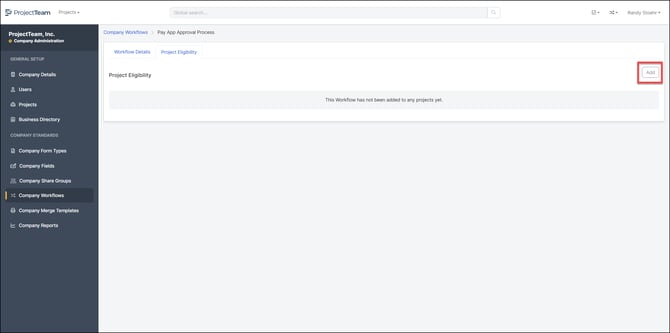
- Select Add.
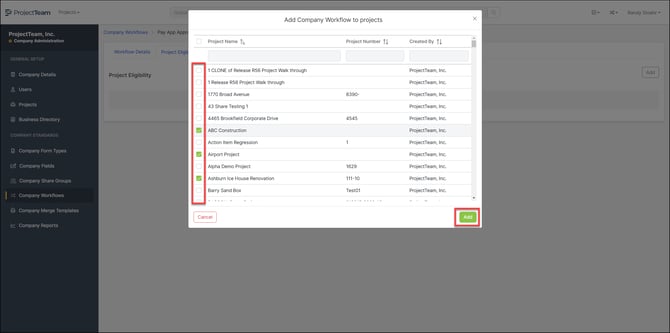
- In the pop-up, choose the projects you'd like to add the workflow to and click Add.
Remove Projects from Company Workflows
Note: Once a workflow has been started on a form within a project, that project cannot be removed from the Company Workflow list.
- Click the Company Workflow you would like to remove a project from.
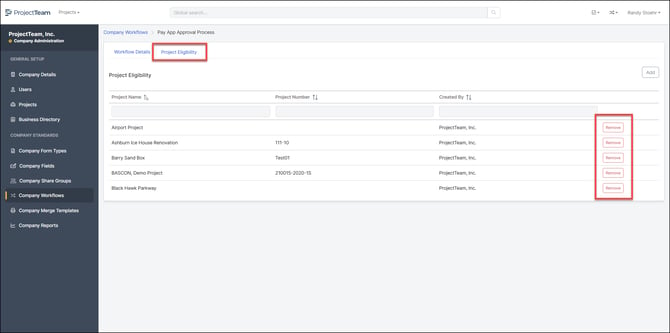
- At the top of the page, click the Project Eligibility tab.
- Scroll to the project and click Remove.
- A pop-up will appear asking if you are sure you want to remove this project from the Company Workflow. Click Yes.
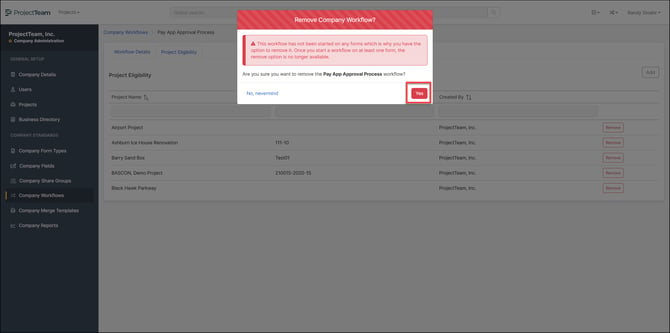
Once you have removed a project from a Company Workflow, you can still re-add the project at any time.
Delete Company Workflows
Note: Once a workflow has been started on a form within a project, that Company Workflow can no longer be deleted.
- On the "My Company" homepage, navigate to the Company Workflows area.
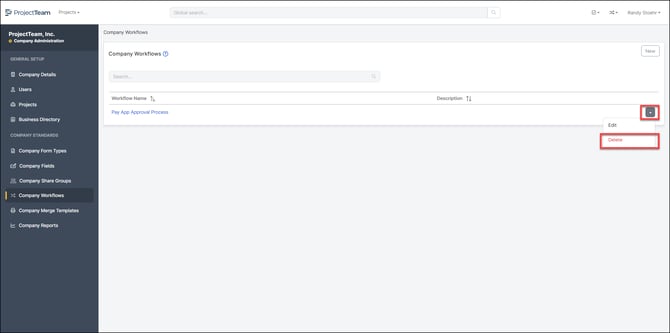
- Next to the Company Workflow you want to delete, click the dropdown button on the right side of the page.
- Click Delete.
- A pop-up will appear asking if you are sure you want to delete the Company Workflow. Click Yes.
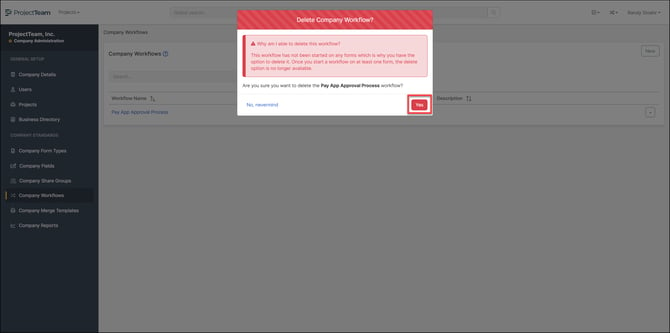
Once deleted, the workflow will no longer be available or accessible on any project.