![ProjectTeam Logo - White with colored dots-2.png]](https://help.projectteam.com/hs-fs/hubfs/ProjectTeam%20Logo%20-%20White%20with%20colored%20dots-2.png?height=28&name=ProjectTeam%20Logo%20-%20White%20with%20colored%20dots-2.png)
Overview
Markups on files allows users to add annotations and place them anywhere on the file. ProjectTeam also provides a signature markup which gives the user the ability to add a digital signature and include a date stamp. Signatures add another level of review and approval within files and attachments within ProjectTeam.com.
Add a signature to files
ProjectTeam.com provides a robust viewing experience for many of the most common file types including:
- MS Office (Word, Excel, PowerPoint)
- Images (JPG, PNG)
To turn on the markup tool, follow the steps below to add a digital signature:
1. Click on the file name that you want to open and toggle on markups.
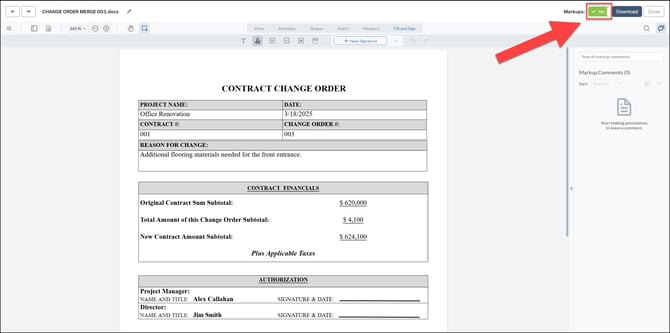
2. Click "Fill and Sign" in the markup tools section.
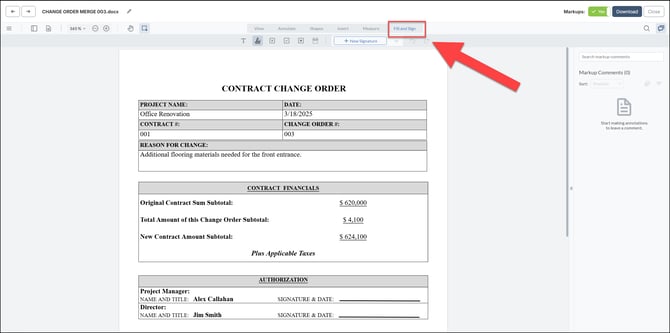
3. The second annotation tool is a signature, select it and type in your name. Once you type in your name, Click "Create".
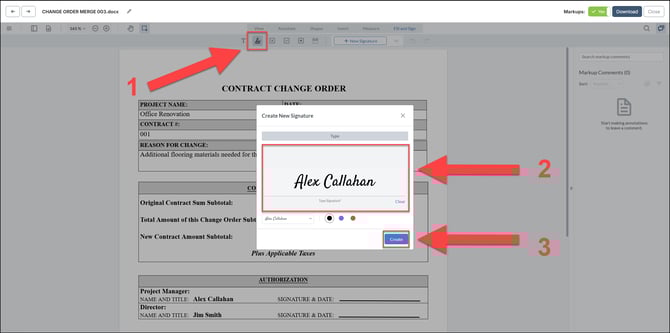
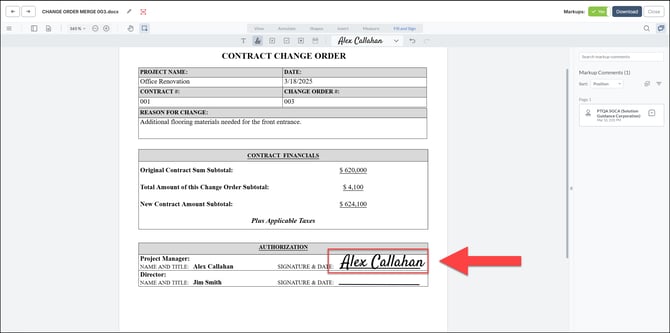
4. From here, you will be able to place your signature anywhere on the file.
Add a signature date to files
1. Similar to the previous steps, select the "Fill and Sign" tab within the markups of a file.
2. Select the calendar markup tool.
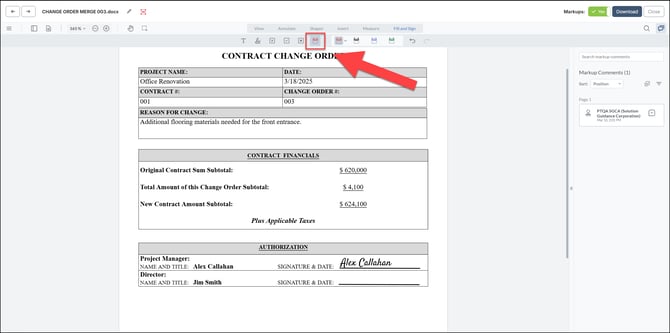
3. Draw a text box in the location you want the date to be placed.
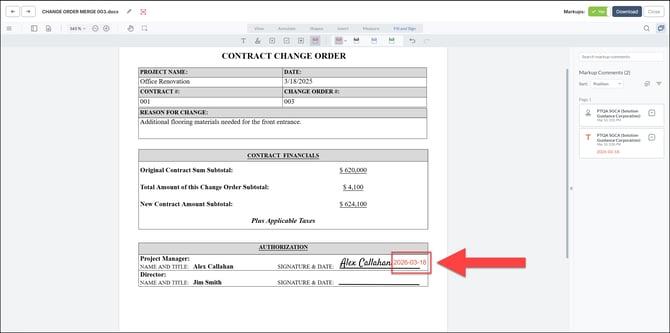
4. By default, the date will be todays date. After you place the date, you have the ability to change the date as well as the color of the text.
The "Fill and Sign" markups tool offers a range of options that allow users to efficiently review, annotate, and approve documents. These options include, Free Text, Signature, Cross, Tick, Dot, and Calendar, each serving a specific purpose in the markup process. Together, they provide a flexible and streamlined way to add comments, indicate approvals, and complete documentation with clarity and precision.